
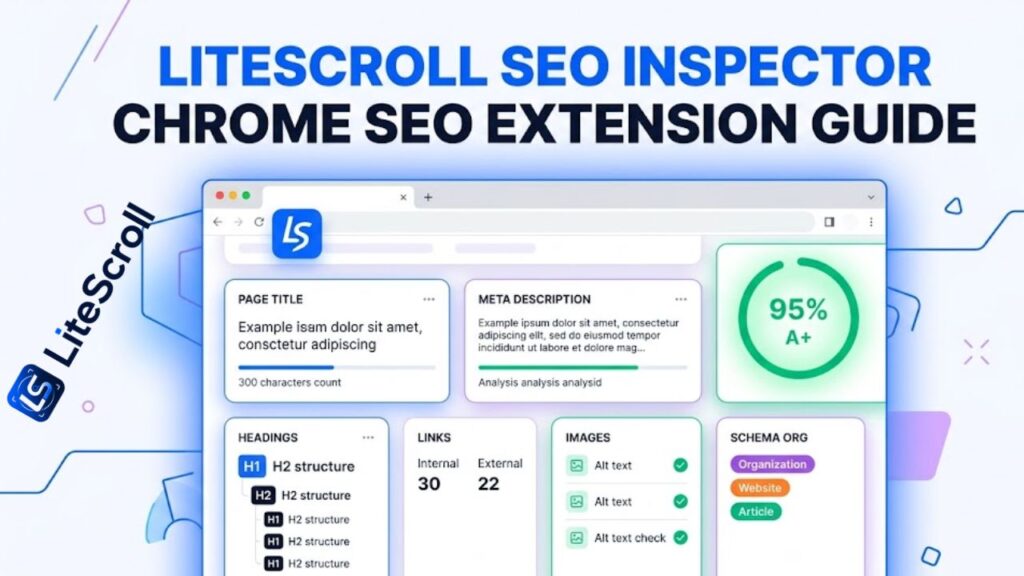
LiteScroll SEO Inspector is a Chrome SEO extension built for fast current-page SEO checks. Instead of opening many different tools, you can inspect the page you are already viewing and review the most important SEO signals in one clean panel.
This guide explains how to use LiteScroll SEO Inspector, what the extension checks, and how to turn the report into practical SEO improvements for your website.
What is LiteScroll SEO Inspector?
LiteScroll SEO Inspector is the litescroll.com free extension for checking page-level SEO signals directly inside Chrome. It is useful when you want to review a single page quickly, copy its heading structure, check metadata, review links, inspect image alt text, or export a short SEO report.
The tool is especially helpful for bloggers, WordPress site owners, freelancers, small business websites, and anyone who wants a simple way to inspect on-page SEO without using complicated software.
Why use a Chrome SEO extension?
A website crawler is good for scanning many pages, but sometimes you only need to inspect one important page. For example, you may be editing a homepage, service page, blog post, product page, or landing page and want to check the page before publishing.
A Chrome SEO extension makes this faster because it reads the current page you are viewing and shows important SEO details instantly. This saves time and helps you find issues while the page is still open in your browser.
How to install LiteScroll SEO Inspector
First, visit the LiteScroll SEO Inspector Download page and download the extension file. If the extension is not yet available on the Chrome Web Store, you can install it manually using Chrome Developer Mode.
- Download the LiteScroll SEO Inspector ZIP file.
- Extract the ZIP file on your computer.
- Open chrome://extensions/ in Chrome.
- Turn on Developer Mode.
- Click Load unpacked and select the extracted extension folder.
- Pin the LiteScroll SEO Inspector icon to your browser toolbar.
After installation, open any normal website page and click the LiteScroll icon to inspect that page.
Main SEO checks inside LiteScroll SEO Inspector
LiteScroll SEO Inspector is designed to show the most useful page-level checks in a simple layout. Here are the most important sections you should review.
1. Meta title check
The title tag is one of the first things to review on any page. LiteScroll SEO Inspector shows the page title and the character count so you can quickly see whether the title is missing, too short, too long, or in a good range.
A good title should describe the page clearly and include the main topic naturally. For branded pages, adding LiteScroll or litescroll.com can also help build brand search relevance.
2. Meta description check
The meta description does not directly guarantee rankings, but it can affect how your page looks in search results. LiteScroll SEO Inspector shows the description text and character count so you can improve weak or missing descriptions.
Try to keep descriptions clear, useful, and action-focused. Explain what the page offers and why the user should click.
3. Headings check
Headings help users and search engines understand your page structure. LiteScroll SEO Inspector shows H1 to H6 headings and makes it easier to spot missing H1 tags, repeated H1 tags, messy heading order, or weak section structure.
Use the Copy All Headings button when you want to quickly review the page outline, send it to a client, or compare it with the article plan.
4. Links check
Internal and external links are important for navigation, crawl flow, and user experience. LiteScroll SEO Inspector can help you review link counts and understand whether a page has enough useful internal links.
For important pages, link to related LiteScroll pages such as the SEO crawler, SEO inspector, pricing page, blog, and support pages when relevant.
5. Image SEO check
Images should have useful alt text when the image adds meaning to the page. LiteScroll SEO Inspector helps you find images without alt text so you can improve accessibility and image SEO.
Alt text should describe the image naturally. Avoid keyword stuffing. A simple and accurate description is better than a long forced keyword sentence.
6. Schema and social tags
Schema markup and social meta tags help search engines and social platforms understand your page better. LiteScroll SEO Inspector can show whether schema, Open Graph tags, and Twitter or X card tags are present.
For blog posts, Article or BlogPosting schema is useful. For LiteScroll tool pages, Software Application schema can be useful when available in your SEO plugin.
Best workflow with LiteScroll SEO Crawler
LiteScroll SEO Inspector is best for checking the current page. LiteScroll SEO Crawler is best for scanning multiple pages. The best workflow is to use both tools together.
- Run LiteScroll SEO Crawler to scan your website and find page-level issues.
- Open the most important pages in Chrome.
- Use LiteScroll SEO Inspector to inspect each page in more detail.
- Fix title, description, headings, links, image alt text, schema, and content structure issues.
- Recheck the page after making changes.
This workflow helps you move from a broad website audit to focused page improvements.
When should you use LiteScroll SEO Inspector?
Use LiteScroll SEO Inspector whenever you publish or update an important page. It is also useful when reviewing competitor pages, checking client websites, auditing blog posts, or preparing pages before indexing.
The extension is not meant to replace a full audit. It is a fast page inspection tool that helps you catch common on-page SEO issues before they become bigger problems.
Quick checklist before publishing a page
- The page has one clear H1 heading.
- The meta title is clear and not too long.
- The meta description is written for users.
- Important images have helpful alt text.
- The page links to useful internal pages.
- Canonical and robots signals look correct.
- Schema and social tags are present when needed.
- The page can be inspected and exported for review.
Final thoughts
LiteScroll SEO Inspector gives you a fast way to inspect important SEO signals directly from Chrome. It helps you review a page before publishing, identify simple mistakes, and export a useful summary for your SEO workflow.
For the best results, use LiteScroll SEO Inspector with LiteScroll SEO Crawler. Start with a website crawl, then inspect and improve your most important pages one by one.
FAQ: LiteScroll SEO Inspector Guide
Is LiteScroll SEO Inspector free?
Yes. LiteScroll SEO Inspector is presented as a litescroll.com free extension for checking current-page SEO signals in Chrome.
Does LiteScroll SEO Inspector crawl the whole website?
No. LiteScroll SEO Inspector checks the current page you are viewing. Use LiteScroll SEO Crawler when you want to scan multiple pages.
Can LiteScroll SEO Inspector check headings?
Yes. It can show H1 to H6 headings and includes a Copy All Headings option for reviewing the page structure.
Can I export reports from LiteScroll SEO Inspector?
Yes. The extension includes export options such as copy summary, JSON export, and HTML or PDF-style report export depending on browser permissions.
What pages should I inspect first?
Start with your homepage, main service pages, important blog posts, pricing page, tool pages, and pages that receive organic traffic.