
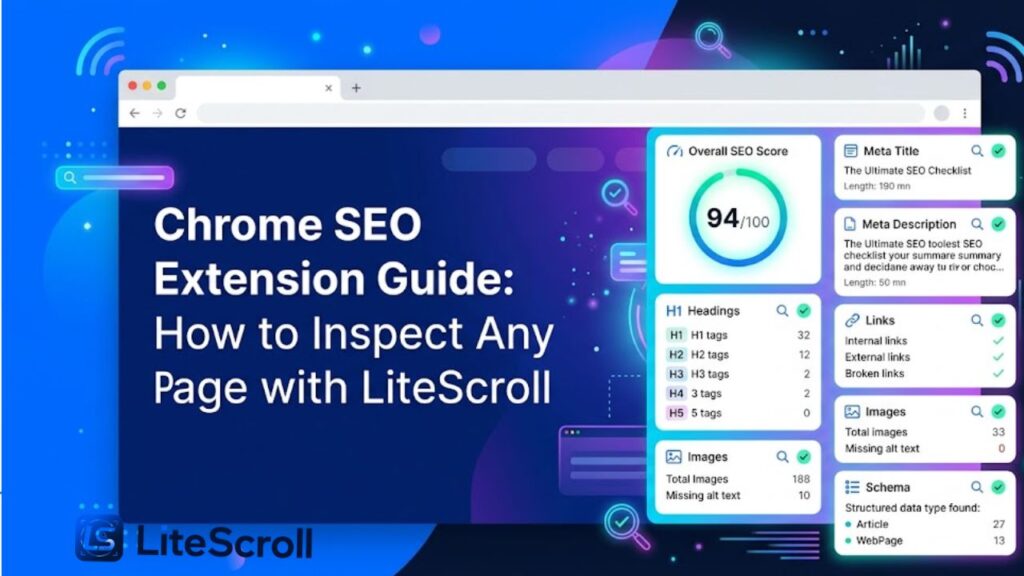
A Chrome SEO extension can make page-level SEO checks much faster. Instead of opening multiple tools, copying URLs, and switching between reports, you can inspect the page you are already viewing and quickly understand what needs attention.
This Chrome SEO Extension Guide explains how to use LiteScroll SEO Inspector for daily page checks. It is useful for bloggers, small business owners, freelancers, and website managers who want a fast way to review titles, descriptions, headings, links, images, schema, social tags, and keyword usage.
For best results, use LiteScroll SEO Inspector with LiteScroll SEO Crawler. The crawler helps you scan multiple pages across a website, while the extension helps you review one important page directly inside Chrome.
Helpful LiteScroll pages: LiteScroll SEO Inspector, SEO Inspector Download, and LiteScroll SEO Crawler.
Outgoing resource: For general Chrome extension management steps, Google provides an official guide here: Install and manage extensions – Google Chrome Help.
What Is a Chrome SEO Extension?
A Chrome SEO extension is a browser tool that helps you check SEO signals while you are viewing a page. It can show information such as the meta title, meta description, canonical URL, headings, internal links, image alt text, schema data, and social preview tags.
The main benefit is speed. When you are editing a page, reviewing a client website, or checking a competitor page, a Chrome SEO extension gives you a quick first look without leaving the browser.
LiteScroll SEO Inspector is built for this workflow. It focuses on clear page-level information, copy buttons, export options, and easy-to-understand checks.
Why Use LiteScroll SEO Inspector?
- It checks important page SEO signals directly inside Chrome.
- It helps you review title length, description length, and missing metadata quickly.
- It shows heading structure so you can review H1, H2, and other headings without manually scanning the page.
- It helps find image SEO issues such as missing alt text.
- It gives copy and export options that make reporting easier.
- It works well with LiteScroll SEO Crawler for a complete branded SEO workflow.
Related internal link: Download LiteScroll SEO Inspector if you want to install and test the extension.
How to Inspect a Page with LiteScroll SEO Inspector
- Open the website page you want to check in Chrome. Start with an important page such as your homepage, service page, blog post, product page, or landing page.
- Click the LiteScroll SEO Inspector icon. The extension panel should open and show an overview of the current page.
- Review the Overview tab first. This gives you a quick look at the meta title, meta description, URL, canonical tag, robots signals, and other page basics.
- Move to the Headings tab. Check whether the page has one clear H1 and a logical H2/H3 structure.
- Check the Links tab. Look for internal links, external links, nofollow links, and whether the page has enough helpful navigation for users and search engines.
- Open the Images tab. Review missing alt text and image signals so you can improve image SEO and accessibility.
- Review Schema and Social tabs. These help you understand structured data and social preview tags.
- Use copy or export options. Copy the summary, copy all headings, export JSON, or create an HTML/PDF-style report for your notes.
What Should You Check First?
- Meta title: The title should be clear, relevant, and close to the main page topic. If it is too short, too long, missing, or not focused, update it.
- Meta description: The description should explain the page clearly and encourage the searcher to click. It should not be missing or duplicated across many pages.
- H1 heading: A page should normally have one main H1 that matches the topic. If the H1 is missing or unclear, fix it before smaller layout issues.
- Canonical URL: The canonical should usually point to the preferred version of the page. Wrong canonical tags can confuse indexing signals.
- Image alt text: Images should have useful alt text when they support the content. Decorative images may not need descriptive alt text, but important images should be explained.
- Schema and social tags: Schema helps search engines understand page context, while Open Graph and social tags help when the page is shared.
How LiteScroll SEO Inspector Fits with LiteScroll SEO Crawler
LiteScroll SEO Inspector is best for checking one page at a time. LiteScroll SEO Crawler is better when you want to scan multiple pages and find sitewide patterns.
A good workflow is to run LiteScroll SEO Crawler first, find pages with missing titles, weak descriptions, missing H1 tags, or image issues, and then open those pages in Chrome with LiteScroll SEO Inspector for a deeper page-by-page review.
This workflow is especially useful when improving a new site, cleaning up old blog posts, reviewing client websites, or preparing a Pro SEO Audit request.
Useful internal links: LiteScroll SEO Crawler and LiteScroll Pro SEO Audit.
Beginner Workflow for Better Page SEO
- Scan your website with LiteScroll SEO Crawler.
- Pick the pages with the most important issues.
- Open each page in Chrome.
- Use LiteScroll SEO Inspector to review the page details.
- Fix the title, description, H1, headings, image alt text, and links.
- Re-check the page after publishing changes.
- Export or copy the summary for your records.
Common Mistakes a Chrome SEO Extension Can Help Find
- Missing meta description on important pages.
- Meta title that is too long, too short, or not focused.
- Multiple H1 tags or no H1 tag at all.
- Images without helpful alt text.
- Pages with weak internal linking.
- Missing or unclear canonical URL.
- Missing Open Graph tags for social sharing.
- No schema or incomplete structured data on important pages.
When Should You Use a Chrome SEO Extension?
Use a Chrome SEO extension whenever you need a fast page-level check. It is helpful before publishing a new blog post, after updating a landing page, when reviewing client work, or when checking a page that is not performing well.
A browser extension is not a full replacement for a complete website crawl, but it is excellent for quick checks. When you combine it with LiteScroll SEO Crawler, you get both sitewide scanning and current-page inspection.
Final Thoughts
LiteScroll SEO Inspector gives website owners a faster way to review important SEO signals without leaving Chrome. It helps you see the page title, description, headings, links, images, schema, social tags, and keyword signals in one place.
For a complete LiteScroll workflow, start with LiteScroll SEO Crawler, inspect important pages with LiteScroll SEO Inspector, and request LiteScroll Pro SEO Audit when you need deeper review. This simple process can help you find common SEO issues and improve pages with more confidence.
FAQ
What is the best Chrome SEO extension for LiteScroll users?
LiteScroll SEO Inspector is the branded Chrome SEO extension for litescroll.com users. It is built to inspect current-page SEO signals and work with LiteScroll SEO Crawler.
Can LiteScroll SEO Inspector scan a full website?
LiteScroll SEO Inspector checks the current page in Chrome. For multi-page scans, use LiteScroll SEO Crawler.
Does LiteScroll SEO Inspector check headings?
Yes. It can help review H1 to H6 headings and copy the heading structure for quick content audits.
Can I export SEO data from LiteScroll SEO Inspector?
Yes. Depending on the extension version and browser permissions, you can copy summaries, export JSON, and use HTML/PDF-style report options.
Should I use LiteScroll SEO Crawler or LiteScroll SEO Inspector first?
Start with LiteScroll SEO Crawler for sitewide issues, then use LiteScroll SEO Inspector to inspect important pages one by one.