
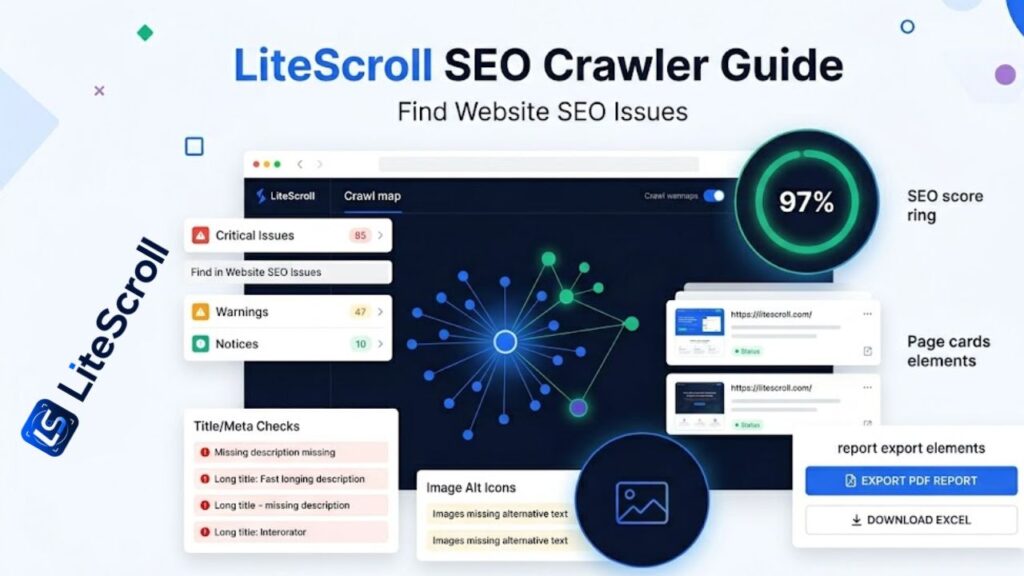
A website can look clean on the outside but still have SEO problems hiding across pages. Missing titles, weak meta descriptions, duplicate headings, broken internal signals, empty image alt text, and indexability issues can make it harder for search engines and users to understand your site. That is why a crawler-based SEO check is useful: it lets you review more than one page at a time and spot patterns that are easy to miss manually.
This LiteScroll SEO Crawler guide explains how to use the crawler on litescroll.com, what issues to look for first, and how to turn the report into a practical SEO fix plan. The goal is simple: scan your website, understand the main problems, and improve pages step by step.
Start here: LiteScroll SEO Crawler can help you run a quick website crawl and review common SEO signals in a clean report format.
What is LiteScroll SEO Crawler?
LiteScroll SEO Crawler is a free SEO crawler by litescroll.com that scans website pages and checks common on-page and technical SEO signals. Instead of opening every URL one by one, you can enter your website, run a scan, and review issues in one place.
It is especially useful for bloggers, small business owners, freelancers, and WordPress site owners who want a simple way to find basic SEO mistakes before they become bigger problems. You can use the crawler as a first audit step, then inspect important pages manually with LiteScroll SEO Inspector.
Why a crawler is better than checking one page only
Manual SEO checks are useful, but they are slow. If your site has 20 or 50 pages, it is easy to fix the homepage and forget older posts, service pages, category pages, or landing pages.
A crawler helps you see website-wide patterns. For example, you may discover that many pages have short meta descriptions, several pages are missing H1 headings, or older images do not include alt text. These patterns give you a better SEO roadmap than guessing.
How to run your first LiteScroll SEO crawl
Open the LiteScroll SEO Crawler page and enter the website URL you want to check. Use the full website address, such as https://example.com. After starting the scan, wait for the crawler to collect page data and build the report.
For best results, start with your own website or a website you are allowed to audit. If a site blocks crawlers or uses heavy security rules, some pages may not be available for scanning. That is normal for many web tools and does not always mean the crawler is broken.
Important SEO checks to review in the report
After the crawl finishes, do not try to fix everything at once. Start with the issues that affect understanding, indexability, and user experience. The most important checks are usually:
- Meta title: Check whether each page has a clear, unique title that explains the page topic.
- Meta description: Look for missing, too short, too long, or weak descriptions that do not encourage clicks.
- H1 heading: Make sure important pages have one clear H1 that matches the page intent.
- Canonical URL: Review whether pages point to the correct main version of the URL.
- Indexability: Check if important pages are indexable and not blocked by noindex or robots signals.
- Images: Find images without alt text and add useful descriptions where needed.
- Internal links: Review whether important pages are connected to the rest of the website.
The best order to fix SEO issues
A clean report is helpful only when you convert it into action. Use this simple priority order after your LiteScroll SEO Crawler scan:
| Priority | Issue Type | Why it matters |
| 1 | Indexability problems | Important pages should be available for search engines to crawl and index. |
| 2 | Missing or weak titles | Titles are one of the clearest page-topic signals and appear in search results. |
| 3 | Missing descriptions | Descriptions can improve search snippets and click-through clarity. |
| 4 | Heading structure issues | Headings help users and search engines understand content organization. |
| 5 | Image alt text | Alt text improves accessibility and gives images better context. |
| 6 | Internal linking gaps | Internal links help important pages get discovered and understood. |
Use LiteScroll SEO Inspector for page-level review
A crawler report gives you a website-wide view, but some pages need deeper manual review. After you find important pages with issues, open those pages in Chrome and inspect them with LiteScroll SEO Inspector.
The inspector can help you review the current page title, meta description, headings, links, images, schema, social tags, and keyword signals. This workflow is useful because the crawler helps you find the problem pages, while the inspector helps you review one page in more detail.
Common mistakes beginners should avoid
Do not fix SEO issues randomly. If a page is not important, it may not need the same attention as a service page, money page, or high-traffic blog post. Start with pages that matter most for your business, brand, or content goals.
Also avoid rewriting every title or description just because a tool shows a warning. Use the report as guidance, then check whether the page already serves its purpose. A good SEO fix should improve clarity, not only chase a score.
Example workflow for a small website
For a small WordPress website, a simple workflow could look like this: run a LiteScroll SEO Crawler scan, export the report, sort issues by priority, fix homepage and main service pages first, inspect those pages with the Chrome extension, then move to blog posts and category pages.
After making changes, run another crawl. This second scan helps you confirm whether your fixes worked and whether new issues appeared. SEO improvement is usually a repeated process, not a one-time task.
Helpful LiteScroll links
Use these LiteScroll pages together for a stronger SEO workflow:
- LiteScroll SEO Crawler for website-wide scans and reports.
- LiteScroll SEO Inspector for current-page SEO inspection.
- LiteScroll SEO Inspector Download to install the litescroll.com free extension.
- LiteScroll Pro SEO Audit for deeper review when you need more help.
FAQ
Is LiteScroll SEO Crawler free?
Yes. LiteScroll SEO Crawler is designed with a free scan option for checking common SEO issues on website pages.
Can the crawler find every SEO issue?
No SEO crawler can guarantee that it will find every issue. Some websites block crawlers, some content loads with JavaScript, and some SEO decisions need manual review.
Should I use LiteScroll SEO Inspector too?
Yes. Use the crawler for website-wide checks and use LiteScroll SEO Inspector for deeper current-page checks inside Chrome.
Final thoughts
LiteScroll SEO Crawler gives you a simple starting point for improving a website. Instead of guessing what is wrong, you can scan pages, review SEO signals, and build a clear fix list. Start with indexability, titles, descriptions, headings, images, and internal links. Then use LiteScroll SEO Inspector to review important pages more closely.
The best SEO workflow is not complicated: crawl your site, understand the report, fix the most important pages first, and repeat the scan after improvements. That process can help you build a cleaner and more search-friendly website over time.